The short answer
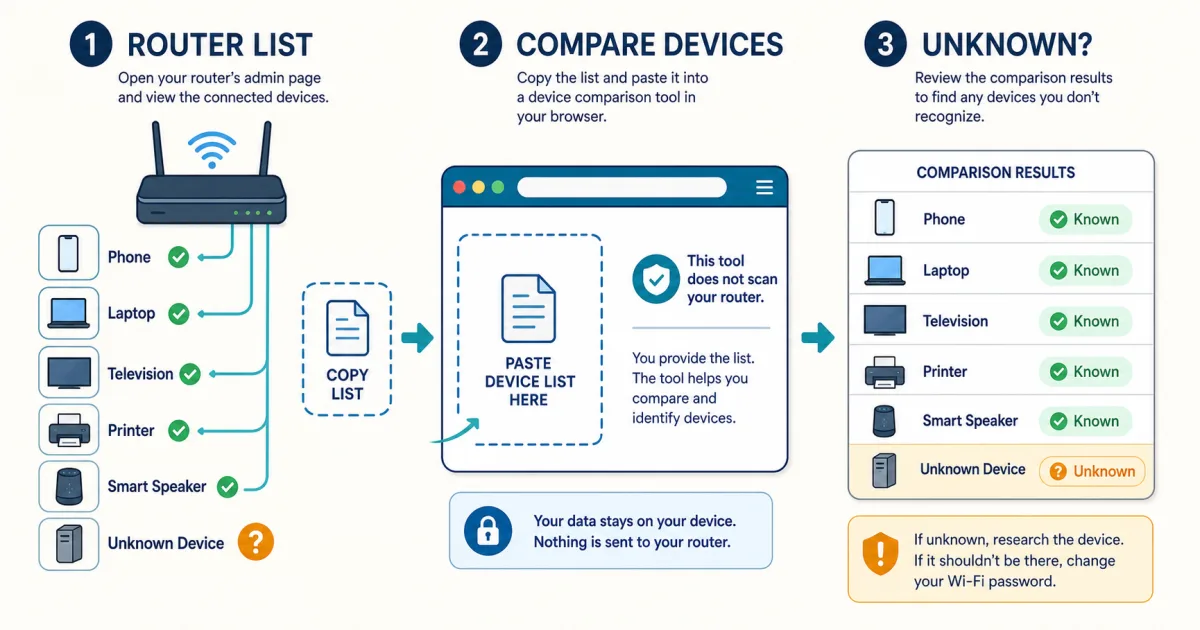
The most reliable place to see who is connected is your router or mesh system's Connected devices, Clients, or Network map page. Copy that list into
Who's On My WiFi
to organize the IP addresses, MAC addresses, names, and manufacturer clues. If you cannot access the
router, arp -a on Windows or macOS—or ip neigh on Linux—provides a useful but
incomplete neighbor list.
Do not assume every unfamiliar name is an intruder. Phones can use private MAC addresses, routers may show chip manufacturers instead of product brands, and TVs, printers, extenders, watches, speakers, and guest devices are easy to forget.
Router list vs. ARP table: which should you use?
| Source | What it tells you | Main limitation |
|---|---|---|
| Router or mesh client list | The best available view of devices associated with or known to the router. | Guest, wired, mesh, offline, and DHCP-lease entries may be separated or labeled differently. |
arp -a / ip neigh | IP-to-MAC mappings learned by one computer on the local network. | Can miss quiet devices and include stale entries; it is not a complete live Wi-Fi scan. |
| Toolsda parser | Organizes a pasted list and adds bundled vendor and device-type clues. | It can only analyze the entries you provide and cannot prove who owns a device. |
Method 1: check the router's connected-device page
Open the router or mesh app. If you use an ISP or mesh app, look for Devices, Clients, Connected devices, or Network map.
Or open the gateway address in a browser. Common addresses include
192.168.1.1,192.168.0.1, and192.168.29.1, but use the gateway shown by your own device or router label rather than guessing repeatedly.Sign in directly. Use the router-admin credentials you configured or the instructions supplied with the router. Never paste that password into a third-party website.
Refresh and check every section. Some routers separate 2.4 GHz, 5 GHz, guest, wired, mesh-node, active, and offline devices.
This is normally more complete than an ARP table because the router manages the network. Even so, labels vary by firmware, and a saved DHCP lease is not always proof that a device is connected at this moment.
Method 2: get a quick neighbor list from your computer
- Windows: open Command Prompt and run
arp -a. - macOS: open Terminal and run
arp -a. - Linux: open a terminal and run
ip neigh.
These commands show the current neighbor or ARP cache. Microsoft describes arp -a as displaying
current ARP entries, and Linux documents ip neigh as showing neighbor bindings between protocol
and link-layer addresses. That cache is shaped by what your computer has learned; it is not guaranteed to
contain every Wi-Fi client.
How to use Who's On My WiFi—4 steps
Copy your router table or command output. Include the rows containing both local IP and MAC addresses. Do not include your router password.
- Paste it into
Who's On My WiFi
and choose Parse Devices.
Review the result. The tool normalizes and deduplicates the entries, sorts them by local IP, and shows any hostname, MAC address, bundled vendor match, and device-type guess.
Mark devices you recognize. Investigate what remains instead of treating every unmarked row as malicious.
Parsing and the bundled vendor lookup run in the browser; the list is not uploaded to Toolsda. The tool keeps up to three recent pasted entries in this browser's local storage for convenience. On a shared device, clear the site's stored data when you are finished if you do not want that local history retained.
How to identify an unfamiliar device
Compare the MAC address. Open the Wi-Fi details on each phone, tablet, laptop, TV, or smart device and compare the address shown for your home network with the router entry.
Turn one device's Wi-Fi off temporarily. Refresh the router list. If the entry disappears, you have identified it. Reconnect afterward.
Use the vendor only as a hint. An OUI or other registered address block can identify the network-interface maker, which may differ from the brand printed on the product.
Check private-address settings. Apple and Android devices can use a randomized MAC per network, so a vendor may be missing and the address may change over time.
Account for infrastructure. Your router, modem, mesh nodes, extenders, smart-home hubs, and wired devices can all appear alongside Wi-Fi clients.
What to do when the device truly does not belong
- Pause or block the device in the router interface if that control is available.
Change the Wi-Fi passphrase to a long, unique value. Reconnect only devices and people you recognize; this is more dependable than maintaining a MAC deny list alone.
- Use WPA2 or WPA3 and disable WEP, open-network mode, and WPS.
- Change a default router-admin password and disable remote administration unless you need it.
- Install current router firmware and review guest-network access.
A MAC address is not an identity credential—it can be copied or changed. Blocking one address can remove the immediate entry, but changing the Wi-Fi password and correcting weak router settings addresses the way an unauthorized device joined.
What a browser-based checker cannot tell you
A normal webpage cannot reliably sign in to your router and read its authenticated client list. Browser same-origin protections restrict one origin from reading another, and routers require their own local authentication. Toolsda can help locate common gateway addresses, but it does not read the connected-device page or scan the network. It only parses the text you provide.
The result also cannot prove that a device is safe, identify the person holding it, detect malware, or show all past connections. For continuous monitoring, use the router's own controls or a trusted native network management tool with explicit local-network permission.
Related safety checks
Sources and methodology
- Microsoft Learn:
arp— what the Windows ARP cache andarp -acontain. - Linux
ip-neighbourmanual — neighbor-table bindings and states. - Apple: private Wi-Fi addresses — per-network and rotating private MAC behavior.
- Android Open Source Project: Wi-Fi MAC randomization — randomized address behavior on Android.
- IEEE Registration Authority — registered MAC address blocks used for vendor clues.
- MDN: same-origin policy — why a web page cannot freely read a router's local admin origin.
Tool-specific statements were checked against the current Toolsda parser: it accepts router rows,
arp -a, and ip neigh text; requires an IPv4 and MAC pair; deduplicates by MAC;
flags locally administered addresses; and performs vendor enrichment from a bundled table.
Frequently Asked Questions
What is the most accurate way to see every device connected to my Wi-Fi?
Open your router or mesh system's connected-clients page or official management app. It has the best available view of associated Wi-Fi clients and often wired clients too. Refresh the page and check whether guest, mesh, and wired devices appear in separate lists.
Does arp -a show every device connected to my Wi-Fi?
No. arp -a shows the current ARP cache: IP-to-MAC mappings your computer has learned. It can omit devices your computer has not recently communicated with and can retain stale entries, so use it as a quick clue rather than a complete live client list.
Why does my phone appear as an unknown or changing device?
Modern phones and computers can use a private or randomized MAC address for each Wi-Fi network. That can hide the hardware vendor or make the same device appear under a changed address. Compare the Wi-Fi address shown in that device's network settings with the router entry.
Can Toolsda scan my Wi-Fi automatically?
No. A normal webpage cannot reliably read your router's authenticated client list, and Toolsda never asks for the router password. It parses a router table, arp -a output, or ip neigh output that you copy and paste yourself.
Does an unknown manufacturer mean someone hacked my Wi-Fi?
No. The manufacturer may describe the network chip rather than the product, and a randomized MAC may have no useful vendor match. Smart TVs, streaming devices, extenders, printers, watches, and guest phones are common sources of unfamiliar entries.
What should I do if an unknown device really is connected?
Block or pause it in the router if available, then change the Wi-Fi password, use WPA2 or WPA3, disable WPS, update router firmware, change any default router-admin password, and reconnect only devices you recognize. Do not rely on MAC filtering alone because MAC addresses can be copied.